Author: Adam Fowler

HP ProLiant MicroServer Gen8 – Real World Usage

You may have read my previous blog post, covering an initial overview of the HP ProLiant MicroServer Gen8. I’m still very happy with the hardware as a whole, but had some issues in updating firmware using the Intelligent Provisioning OS. First, if you want to get the latest (at time of writing) version of Intelligent Provisioning 1.40, you can download a 921mb ISO of it it from here: hp.com

My home internet is rather slow, and I think this was the main issue with the firmware update process timing out. I decided to download an iso of all firmware for the server called HP Service Pack for ProLiant 2013.09.0 (B), which you can also download from here: hp.com – note you have to sign up for a hp account first, and the download is 2.9gb.

I was able to install Windows Server 2012 R2 using Intelligent Provisioning, which nicely installs all the required drivers without you having to think about it and that worked perfectly.

Getting the lid of the case off and on was very simple to do, just two thumb screws at the back lets you lift the entire sides and top off in one piece. You can access pretty much everything internally you need to at that stage due to the convenient design.

Next up, by default the server can take 4 x 3.5″ HDDS, and a 9.5mm CD/DVD drive. Luckily this means if you don’t need the CD/DVD drive, you can have an extra 2.5″ HDD as your OS install, leaving the other disks for your actual data. A good idea since you can use the remaining SATA port on the motherboard, but there’s no spare SATA power cable, as the CD/DVD drive uses the old style floppy disk power connector (as per the green arrow on the photo below). There’s a molex connection nearby (red arrow) so I pulled that through the gap, and added on a double adapter on the molex, then added a molex > sata adapter to finally get power to the extra hard drive.

WP_20130928_23_29_10_Pro

When I had a drive in the first bay, the server decided that was the preferred boot device. To fix that, I changed the boot order to use the second SATA controller first, as it seems the spare SATA port on the motherboard is connected to that. The first controller goes to the first two HDD bays, and they run at 6Gb/s, compared to the 3Gb/s of the 3rd and 4th bays plus the separate onboard SATA port. This is worth keeping in mind for what drives and data you plan to configure.

As mentioned in the previous blog post, there is a MicroSD slot on the motherboard as well as an internal USB port – neither are useful for a Windows OS unless you’re using Windows To Go. The MicroSD is a bootable device, but also it’s handy as a swap drive or pagefile. Other OS’s that support running off a USB such as ESXi can be used too.

The hard drive bays aren’t hot swappable (unless you buy a separate RAID card, put that into the single empty PCIe 2.0 slot, and connect the drive bay to that instead), but that’s not really a problem anyway. They are quite easy to use, so at least when you have to add or remove a hard drive, you won’t have any physical complications.

For the RAM, I first tried a few sticks of NON-ECC DDR3 sticks, but the server wasn’t happy with those (one was even HP branded). After putting in the first ECC stick I could find, it worked and was bumped up to 4GB. I’m not planning on running VM’s off this thing, so that’s plenty for me.

On the switch side of things, the HP PS1810-8G is a nice fit. Resting on top, it moved ever so slightly when pushed down on so I decided to put it below the server instead, and it is now rock solid. It’s fanless, so you won’t hear it. It can also be powered by PoE, which isn’t very useful in a small business environment, but would be useful if you had an upstream PoE switch – which in that case, you wouldn’t have this MicroServer on top or below it. Regardless, there’s no harm in it being there :) Either way, It runs at 7.2 W maximum, so it’s drawing even less power than many of the standard power saving  compact fluro bulbs.

hp switch

The web interface is plain but very useful with a decent amount of options.

Instead of running three separate network cables to the server, it is nice just to run one to the switch, then have three cables going up to both NIC ports and the iLO, which makes it much more self contained.

Over at GeekZone, Mauricio Freitas has also been playing with the HP server, and had a thread about it along with pictures. Worth having a look. I also found a thread at avforums.com which had more great info, and there seems to be a configuration consideration around trying to use the spare SATA port on board (used for the CD/DVD Drive) as a boot device when the HDD bays are fully populated. I agree with the fix of adding in a PCIe Sata controller, which will then let your extra hard drive be bootable. This in turn could allow you to attach an SSD to the 5th internal SATA port, and then with Windows Server 2012 R2’s tiering options you’d have a pretty decent HDD setup!

Pricing – there’s no RRP that I can find, but you’re looking around the $500 mark. Shop around of course.

So, it’s still a great bit of kit, but as with most things there’s a lot of considerations and adjustments to be made to make it fit exactly how you want – but that’s where the fun is.

HP ProLiant MicroServer Gen8 Overview

Many of you would have heard of, if not used, one of HP’s ProLiant MicroServers. They are relatively cheap cubes of servery goodness, designed to do a much better job than just a standard desktop box. HP released a few months ago the Gen8 version which has a bunch of new features. Cosmetically I think it looks a lot nicer than the older models, and it’s also really simple and smooth to take apart. It’s also closer to being a proper cube than previous models, shorter and stockier.

WP_20130925_18_49_58_Pro

Why get this instead of a normal desktop? It’s low powered (150w), has two NICs onboard, Hot Swap hard drive bays (holding up to four drives, supporting 0/1/10 RAID), and an ILO 4 connector. For a small business, this means you’ll have your data on redundant drives, can double your throughput via the second NIC (NIC Teaming in Windows Server 2012 is awesome and easy) and if you can’t get to your server for some reason, the iLO 4 is HP’s Management Engine that will let you both monitor the server and connect to it, as long as you’ve got power and a network cable plugged into the ILO port. The iLO 4 interface has a lot of management options, and some interesting things like a 3d heat map!

temp

There’s even an Android and iOS App for iLO (screenshot from my Samsung Galaxy S3, using Remote Control) – just another cool little feature.

Ilo

I’m testing the Base Model rather than the Entry Model, detailed specs available here hp.com (check the Pre-configured Models)

  • Processor (1) Intel® Pentium® G2020T (2.5GHz/2-core/3MB/35W) Processor
  • Cache Memory 3MB (1 x 3MB) L3 cache
  • Memory 2GB (1 x 2GB) PC3-12800E DDR3 UDIMM
  • Network Controller HP Ethernet 1Gb 2-port 332i Adapter
  • Storage Controller HP Dynamic Smart Array B120i Controller
  • Hard Drive 500gb SATA2 (no hard drive standard, added on)
  • Internal Storage 4 LFF NHP SATA HDD cage; includes 4 LFF hard drive carriers
  • PCI-Express Slots 1 standard (1-Low Profile) PCIe 2.0
  • Power Supply 150W Non-Hot Plug, Non-Redundant Power Supply

Another nice features are a MicroSD slot on the motherboard – I’m still unsure if this can actually be used as a boot drive or not. Even if that’s not the case, next to the MicroSD slot is a USB port that you can plug a USB drive into for booting, seperate to your disks in RAID.  Then there’s HP Intelligent Provisioning which lets you stream your Firmware updates and  kick off OS installs, adding required drivers as part of the process hp.com – there’s a lot of other nice menu driven options in the Intelligent Provisioning system too (accessed by pressing F10 at startup) including diagnostic checks and modifying system settings.

One of the Operating Systems that this unit is designed to work well with, is Microsoft Windows Server 2012 Essentials. For up to 25 users, there’s no other client access licenses required, but it must be the Active Directory Domain Controller. Officially supported Operating Systems are:

Microsoft Windows Server
Red Hat Enterprise Linux (RHEL)
SUSE Linux Enterprise Server (SLES)

As an aside, I was speaking to a colleague about the new MicroServer as he is running two of the older models at home – overall he was very impressed between the two models and the extra features this one has – but it does come with a bigger price tag. It’s much more of a proper business server than a business class desktop.

There’s a lot to cover about this kit, so in another post I’ll delve deeper into items like RAID and the optional HP PS1810-8G Gigabit switch which fits snugly below or on top the HP MicroServer hp.com. If you have any questions or anything you’d like tested, please comment below and I’ll do my best to include that in the next post. I’ll also be looking at how I’ve chosen to set it up for myself, including getting the Firmware updates working via Intelligent Provisioning, which I think is failing due to my slow 512k upload speed, being shared with other things going on.

Oh, I almost forgot to mention – you can have your HP ProLiant MicroServer Gen8 match your mood! Changeable front plates can match your outfit if required :)

c03896598

I’m rather impressed with this server – it would be even better if it had RAID 5 on board, but it’s designed really well for ease of access. Some online discussions I found have been around noise concerns, but I found the unit I have to be rather quiet.

Note: Hardware was supplied by HP and ivyworldwide for this review

Update: I’ve also published an article on Real World Usage of this server http://www.adamfowlerit.com/2013/09/30/hp-proliant-microserver-gen8-real-world-usage/

System Center 2012 Configuration Manager SP 1 Cumulative Update 3

Last Friday (18th September 2013) Microsoft released CU3 For SCCM 2012 SP1. This has a few little fixes, but the most important part is the addition of Windows 8.1 support.

Information about the update, and the hotfix itself is available at http://support.microsoft.com/kb/2882125/en-us

The install is required on Primary and Secondary sites, but not Distribution Points. It’s actually quite a nice installer and does the standard pre-requisite checks and has links to deployment instructions. It’s recommended to close all consoles, but a reboot of the server isn’t required (it will shut down a bunch of services anyway, so consider it an outage). Funnily enough, the installer says to restart your computer at the end also.

sccm2

As part of the install, it will ask if you want to create packages to install the updated client, the console and server. With the push towards Applications rather than Packages you think they’d do both, but that doesn’t seem to be the case.

Note that you can’t update a standalone install of the console with this update, you’ll need to either deploy it, or manually run it. The install file should be located at “\\yourSCCMserver.yourdomain.com\SMS_PAA\hotfix\KB2882125\AdminConsole\i386” and the install string: “msiexec.exe /p configmgr2012adminui-sp1-kb2882125-i386.msp /L*v %TEMP%\configmgr2012adminui-sp1-kb2882125-i386.msp.LOG /q REINSTALL=ALL REINSTALLMODE=mous”

You can take out the /q to actually see the install rather than waiting for msiexec.exe to disppear from your running processes :) I also needed to reboot after updating the console.

The install process went without a hitch for me, hopefully you’ll experience the same.

Thanks to @sam1310 for alerting me to this update.

Update: To clarify, this patch is for Windows 8.1 and Windows Server 2012 R2 management, not deployment.

To officially deploy Windows 8.1 or Windows Server 2012 R2 you still need SCCM 2012 R2. This explains it quite well: http://myitforum.com/myitforumwp/2013/09/23/windows-8-1-management-path/

 If you are still running System Center Configuration Manager 2007, the SCCM Team has announced that they will be providing an update for Windows 8.1 (and Server 2012 R2) to make them fully supported clients. However, just as Windows 8 there will be no support for Operating System Deployment.


Also from Technet:

http://blogs.technet.com/b/configmgrteam/archive/2013/09/16/support-questions-about-win-8.1-and-winsvr-2012-r2-for-configmgr-and-endpoint-protection.aspx

 Configuration Manager 2007 Service Pack 2

As with System Center 2012 Configuration Manager Service Pack 1, we are adding the following operating systems to our client support matrix in Configuration Manager 2007 with SP2 (includes Configuration Manager 2007 R2 and Configuration Manager 2007 R3):

  • Windows 8.1 Pro
  • Windows 8.1 Enterprise
  • Windows Server 2012 R2 Standard
  • Windows Server 2012 R2 Datacenter

Note: Though these will be fully supported as clients, there is no plan to add support for deploying these as operating systems by using the Configuration Manager 2007 operating system deployment feature. Also, no site servers or site systems will be supported on any version of Windows Server 2012 R2.

Upgrading from Windows 8 to Windows 8.1 Experience

Windows 8.1 has RTM’d! Now that it’s available on TechNet (R.I.P.) and MSDN, I thought I’d try an inplace upgrade from my home Windows 8 Enterprise machine to Windows 8.1 Pro.

The first thing I did after downloading an ISO was to use the Windows 7 USB/DVD Download Tool to make a bootable USB for Windows 8.1 which is incredibly easy. Then after launching the setup.exe from the USB, I was first greeted with a screen asking for a key:

keyA bit strange that an update needs a new key, but once you enter it,  it will run a quick online check before letting you continue.

It’s zero touch from there, it’ll do it’s magic and get to the end, asking you for your Microsoft ID similar to the original Windows 8 way. A very easy upgrade process!

From here on in, it’s going to be a list of issues and comments I had:

  • The first thing I did was run Windows Update – which took about 15 minutes then came back with an error. I tried again and there were updates this time – I’ve done this on a fresh Windows 8.1 build and had similar results, so I’m guessing it’s not something you should do straight away :)
  • Next it didn’t detect my video card properly as I was stuck at a lower resolution and only 1 of my 2 screens, so I had to download the Nvidia graphics driver. There’s already Geforce drivers for Windows 8.1 in beta, so I grabbed them and they seemed to install fine, brining me back to 2 monitor glory.
  • Now that I have a start button, I can right click on it and get a handy menu. Strangely, once this menu is on screen you can’t move your cursor to your other screen… unless you move the cursor really fast! Moving it slow gets you stuck on the edge of the screen, but rapidly move the mouse and your cursor will jump over the other side. Coming back to the first screen is exactly the same, weird!
  • Right clicking on a file in Windows Explorer was fine, but if the contents of the folder you’re in change, the menu disappears. This is rather frustrating if you’ve got a program making changes to files in a folder. I’m hoping this one is a bug.
  • The default bright yellow background I received wasn’t overly pretty, but being able to set the desktop and new Windows 8 interface backgrounds the same makes for a less jarring change between the two modes. You can set this under Taskbar and Navigation properties, Navigation tab, Show my desktop background on start.
  • Also under the Navigation tab is ‘Show Start on the display I’m using when I press the Windows logo key – another good option to enable so the new full screen start menu shows on the screen you’re currently looking at.
  • Having to install all your programs again is a bit annoying (the data of the programs isn’t lost in the upgrade, so you can either install over the top or hopefully just run the exe file depending on the program)
  • Hints pop up randomly telling you how to switch windows or some other tip. A good idea.
  • The latest Java is incompatible with IE11 at the time of writing this (IE11 gives a warning saying “Several add-ons aren’t compatible with Internet Explorer’s enhanced security features and have been disabled”) , but you can still use other browsers.
  • My Computer in Windows Explorer is now called “This PC”. I guess that makes sense, but you can rename it if you don’t like it just as you could before.

That’s all I’ve hit so far, I’ll update this post with any other unexpected or interesting finds.


Adobe Reader Has Stopped Working

Hi,

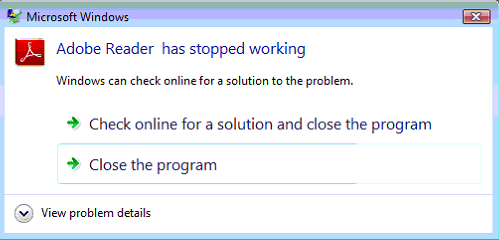
This issue has just come up, and seems to be affecting many people around the world. Adobe Reader X and XI seem to be crashing at startup, after a wait of 10 seconds or so. You’ll see the great ‘Adobe Reader has stopped working’ crash message:

adobestoppedworking

Some quick research showed that others were also experiencing this. I found a few people on Twitter complaining about similar things. @CurtinOasis said “Currently issues with adobe reader crashing on lab computers. May prevent accessing PDF docs. Investigating as a high priority! Sorry guys!” and @VillSumith “Adobe Acrobat Reader, crashing due to faulty network proxy. What’s the connection? Anyone? #adobe #techsupport #windows

One of the fixes was to either update Adobe, or reinstall – both seemed to work, but a rather poor solution for a multitude of installs.

I found this post on the Adobe Community forums: http://forums.adobe.com/thread/1283545?tstart=0 which mentioned this same issue. Ashen.NZ found that Adobe Reader was doing a request to the file http://acroipm.adobe.com/10/rdr/ENU/win/nooem/none/message.zip and blocking that URL actually fixed the issue. I confirmed this myself, checking that file came up in the network traffic logs, and then blocked the whole subdomain http://acroipm.adobe.com – and it worked.

This is by no means a proper fix, but until Adobe work out what’s going on, this will at least keep you going. I’ll update this post if I come across any further information.

Update: The Adobe forums thread above has been updated with an official comment (as pointed out by @Jacobestrin) –


Hi Everyone,

 This was a temporary glitch with our servers that has now been resolved. Please re-launch Acrobat/ Reader and let us know if you still face this issue.

 Thanks for your patience.

 Regards,

Deepak


I’ve disabled the workaround and everything seems ok. Just a slight slipup from Adobe if it was a ‘glitch’ :)